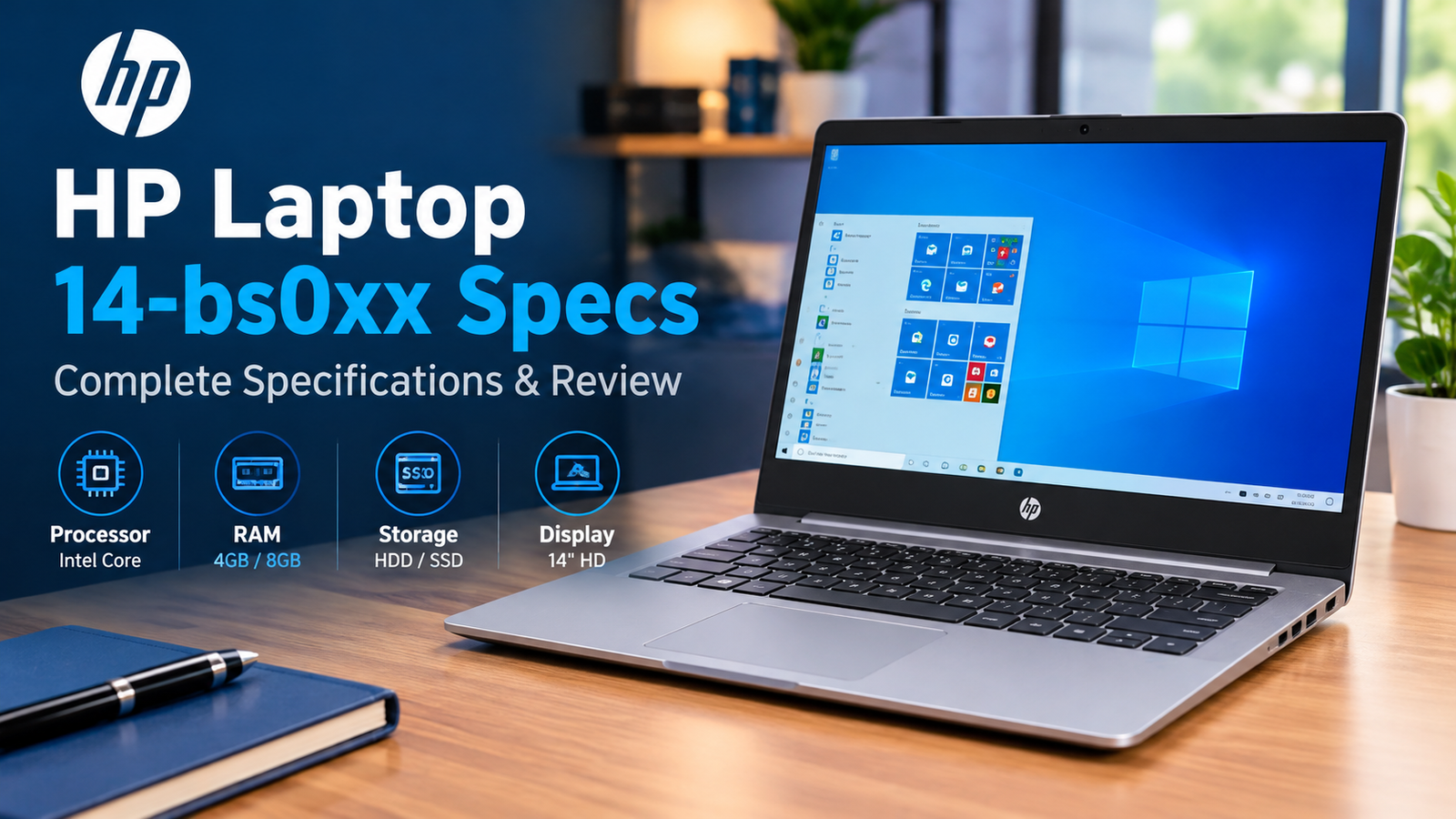
The HP Laptop 14-bs0xx is an affordable 14-inch notebook designed for everyday computing. Depending on its configuration, it can handle tasks such as web browsing, document editing, email, online learning, and basic office work. Although it belongs to an older laptop generation, it may still be useful for people who need an inexpensive computer for simple tasks.
However, not every HP 14-bs0xx laptop has the same hardware. Some versions feature an Intel Core i3 processor, while entry-level models may use Intel Celeron or Pentium processors. Memory, storage, graphics, and other features can also vary by configuration.
This complete guide explains the HP Laptop 14-bs0xx specs, everyday performance, display quality, RAM compatibility, SSD upgrade options, battery considerations, and limitations. It also explains what to check before buying a used laptop or spending money on replacement components.
HP Laptop 14-bs0xx Specifications at a Glance
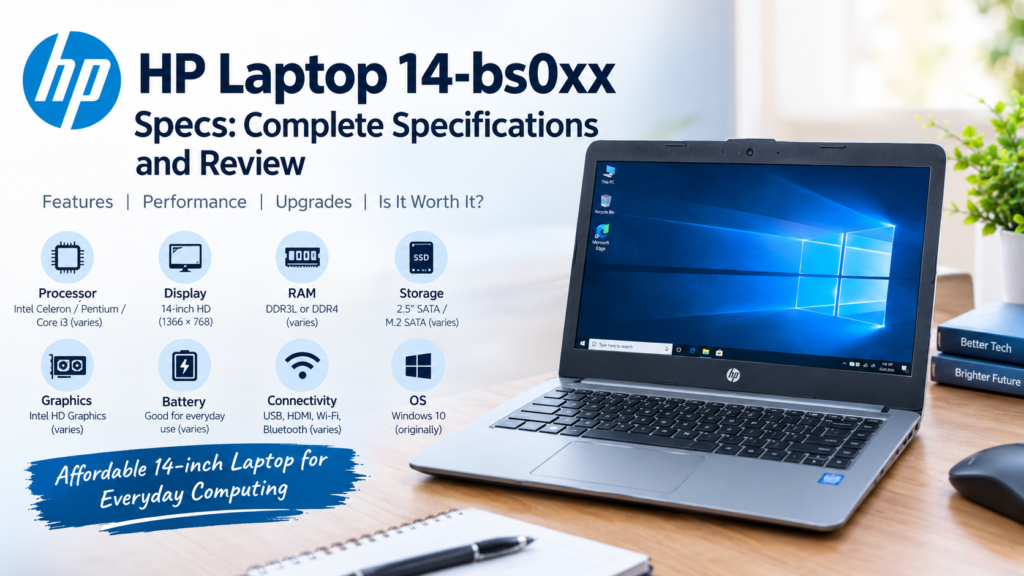
The HP 14-bs0xx is a laptop family rather than a single configuration. The following table outlines common specifications and important compatibility considerations.
| Specification | Details |
|---|---|
| Model series | HP Laptop 14-bs0xx |
| Processor | Selected Intel Celeron, Pentium, or Core processors |
| Example CPU | Intel Core i3-6006U or Intel Celeron N3060 |
| Graphics | Integrated Intel graphics, depending on the CPU |
| Display size | 14 inches |
| Common resolution | 1366 × 768 pixels |
| RAM | Configuration-dependent; some models have 4GB |
| RAM type | DDR3L or DDR4, depending on the processor variant |
| Storage | 2.5-inch SATA drive; selected models support M.2 SATA SSDs |
| Operating system | Many units originally shipped with Windows 10 |
| Connectivity | USB, HDMI, Wi-Fi, Bluetooth, and other model-dependent features |
| Optical drive | Available on selected configurations |
| Main purpose | Everyday computing, education, and office tasks |
These details should be treated as a general overview, not a guarantee for every unit. Before ordering RAM, an SSD, a battery, or another replacement part, identify the exact model and product number.
| 🔗 You may also like: |
| Hardware Requirements for Tech Projects |
| Digital Software & Platform Tools |
Processor Options and Performance
The processor has a major effect on how quickly the HP Laptop 14-bs0xx handles applications. Two laptops with the same series name can feel quite different because they may use different processors.
Intel Core i3-6006U
The Intel Core i3-6006U is a sixth-generation Intel Core processor found in selected configurations. It has two processing cores and four threads, with a base frequency of 2.0 GHz. Its integrated graphics are Intel HD Graphics 520.
This processor is suitable for basic productivity, word processing, spreadsheets, email, and routine web browsing. With sufficient RAM and an SSD, a laptop using this CPU can provide a more responsive experience than a comparable configuration with a low-powered Celeron processor.
Nevertheless, it is an older processor. Demanding applications, extensive multitasking, modern video-editing software, and heavy browser workloads can expose its limitations.
Intel Celeron N3060
Some HP 14-bs0xx models use the Intel Celeron N3060, an entry-level dual-core processor designed for low-power computing.
It can handle simple tasks such as writing documents, checking email, and browsing lightweight websites. However, opening many browser tabs or running several demanding applications simultaneously may cause noticeable slowdowns, particularly when the laptop has only 4GB of RAM.
This configuration is best suited to users with modest computing needs rather than those who expect strong multitasking performance.
Intel Pentium Variants
Selected models in this laptop family may also use Intel Pentium processors. Their performance depends on the exact CPU, memory, and storage configuration.
The Pentium name alone does not guarantee better performance than every Celeron or Core i3 model. Check the complete processor number and compare the hardware before choosing between used laptops.
Display Quality and Screen Size
The HP Laptop 14-bs0xx features a compact 14-inch display, which makes it practical for students, home users, and people who need a laptop that is relatively easy to carry.
Many configurations use an HD resolution of 1366 × 768 pixels. This is adequate for documents, email, online lessons, spreadsheets, and standard video playback. However, the available workspace is more limited than on a Full HD screen, especially when working with large spreadsheets or several windows.
Actual display quality depends on the installed panel, brightness, viewing angles, contrast, and physical condition. Not every unit necessarily has the same screen specification.
Can You Replace the Screen?
A damaged screen can often be replaced, but the replacement must match the laptop’s hardware. Before buying a panel, verify its resolution, connector, mounting points, dimensions, and compatibility with the exact product number.
A screen that looks similar may still have a different connector or mounting arrangement. Checking the original panel number or consulting a laptop repair specialist can help prevent an incompatible purchase.
RAM Specifications and Upgrade Options
RAM affects how many applications the laptop can run comfortably at the same time. If your HP 14-bs0xx has 4GB of memory, limited RAM may contribute to slowdowns when browsing modern websites or switching between programs.
The important point is that memory specifications differ across processor variants.
| 🔗 You may also like: |
| Everything Apple & Tech Reviews |
| Latest Breakthroughs in Tech & Computing |
Which RAM Is Compatible?
Documented Celeron and Pentium configurations use DDR3L-1600 laptop memory, while selected sixth- and seventh-generation Intel Core configurations use DDR4 memory. These memory types are not interchangeable.
For example, an HP 14-bs0xx with the Celeron N3060 has different memory requirements from a version equipped with the Core i3-6006U.
Before purchasing a RAM module, confirm the following:
- The existing RAM type and speed.
- The number of available memory slots.
- The maximum memory supported by the exact configuration.
- Whether the current module can be replaced or supplemented.
Some documented Celeron configurations support up to 8GB of RAM. Selected Intel Core models have different upgrade capabilities, so the maximum should not be assumed to be identical throughout the series.
Is Upgrading From 4GB to 8GB Worth It?
For basic computing, moving from 4GB to 8GB can help reduce slowdowns caused by memory limitations. You may notice improvements when using multiple browser tabs, editing documents, and switching between lightweight applications.
However, a RAM upgrade does not make the processor faster. If the laptop is slow because its CPU is struggling with modern software, additional memory alone will not solve every performance problem.
The most effective upgrade depends on the current hardware and the tasks you perform.
Storage Options and SSD Compatibility
Storage is one of the most useful areas to consider when improving an older HP Laptop 14-bs0xx. A traditional hard disk drive stores data mechanically, while a solid-state drive uses flash memory.
If your laptop still has a mechanical HDD, replacing it with a compatible SSD can improve startup times, application loading, and general system responsiveness. This is often a practical upgrade for a computer that otherwise meets your needs.
2.5-Inch SATA SSD
Selected configurations support a standard 2.5-inch SATA drive in the existing storage bay. Where the original HDD is compatible with this arrangement, it can generally be replaced by a suitable 2.5-inch SATA SSD.
Common SSD capacities include 240GB, 256GB, 500GB, and 1TB. Larger drives may also work, but compatibility should be checked before purchase rather than assumed from capacity alone.
A 500GB SSD can provide a useful balance between space and cost for Windows, applications, documents, and personal files. If you store large videos or many offline files, a higher-capacity drive may be more suitable.
M.2 SATA SSD
Selected Intel Core versions of the HP 14-bs0xx also support M.2 SATA solid-state drives. This can provide another storage option, depending on the motherboard and the parts installed in the laptop.
It is essential to understand that M.2 describes a physical form factor, not a single storage interface. M.2 SATA and M.2 NVMe drives use different interfaces.
For the HP 14-bs0xx configurations discussed in HP support guidance, the M.2 slot supports SATA storage rather than NVMe. An NVMe drive should therefore not be purchased simply because it has an M.2 connector.
Can You Install a 1TB or 2TB SSD?
A higher-capacity SSD may be suitable, but the correct interface, dimensions, mounting hardware, and system compatibility must be confirmed. Storage capacity is only one part of the decision.
Check the exact product number and the applicable service documentation before buying a drive. Back up important files before replacing existing storage, and make sure you have a plan to reinstall or transfer the operating system.
Does the HP 14-bs0xx Support Dual Storage?
Some configurations support an M.2 SATA SSD alongside a 2.5-inch SATA hard drive or SSD. This arrangement can combine faster system storage with additional space for documents, photos, videos, and other files.
However, support for two drives does not mean that every laptop has all the necessary components installed. The drive bracket, cable, connector, and original storage arrangement may differ.
For many users, replacing an existing HDD with a single compatible SSD is the simpler solution. Consider dual storage only after confirming that your specific laptop supports the arrangement and has the necessary hardware.
Battery Life and Replacement
Battery performance depends on the battery’s original capacity, age, charging history, screen brightness, wireless activity, and workload. Because the HP 14-bs0xx is an older laptop family, the condition of an individual battery can matter more than its original specification.
A used laptop may no longer provide the same runtime it delivered when new. If you plan to work away from a power outlet, test the battery before buying the device.
How to Check Battery Health
Windows includes a built-in battery reporting tool. To generate a report:
- Open Command Prompt.
- Enter
powercfg /batteryreport. - Press Enter.
- Open the report file at the location shown by Windows.
- Compare the design capacity with the estimated full-charge capacity.
A substantial difference indicates that the battery has lost some of its original capacity. The report is useful for assessment, although actual runtime also depends on the workload.
When purchasing a replacement, verify the battery part number, voltage, connector, and physical fit. Do not use a battery that is swollen, leaking, or visibly damaged.
| 🔗 You may also like: |
| Everything Apple & Tech Reviews |
| Latest Breakthroughs in Tech & Computing |
Graphics Performance and Gaming
The HP Laptop 14-bs0xx generally relies on integrated Intel graphics. The precise graphics hardware depends on the installed processor.
The Intel Core i3-6006U configuration uses Intel HD Graphics 520, while the Celeron N3060 version uses a different integrated graphics solution.
These systems are intended primarily for everyday computing rather than demanding graphics workloads. They can be appropriate for video playback, basic visual tasks, and some older or lightweight games, depending on the configuration.
Modern games may struggle because of the processor’s age, integrated graphics performance, and limited memory. An SSD can improve loading times, but it does not turn the laptop into a high-performance gaming machine.
If gaming or professional video editing is your main goal, compare the cost of upgrades with the price of a newer laptop designed for those tasks.
Ports and Connectivity
Port availability can vary by configuration, but the HP 14-bs0xx family includes common connectivity options such as USB and HDMI on relevant models. Selected configurations may also provide an SD card reader, a headphone connection, Wi-Fi, Bluetooth, and an optical drive.
These features are useful for connecting a mouse, external storage, headphones, a compatible monitor, or wireless accessories. HDMI can be particularly helpful when a larger external display makes office work more comfortable.
Before buying a used unit, test its USB ports, audio connection, wireless connectivity, charging port, and display output. A faulty port or wireless adapter may require repair and should be considered when evaluating the laptop’s price.
Windows Compatibility and Software Support
Many HP 14-bs0xx laptops originally shipped with Windows 10. The installed operating system may differ if a previous owner upgraded or reinstalled it.
Windows compatibility should be checked against the exact processor and hardware requirements. An operating system that can be installed through an unofficial workaround is not necessarily officially supported.
Windows 10’s standard support ended on October 14, 2025. In 2026, anyone using this laptop should consider the security-update situation carefully. Eligible devices may have access to an applicable extended security update program, but eligibility and enrollment should be verified.
Do not assume that every HP 14-bs0xx model officially supports Windows 11. Check Microsoft’s current processor and hardware requirements before making a decision.
An SSD and additional RAM may improve responsiveness, but neither changes whether the processor meets an operating system’s official requirements.
Common Problems and Practical Solutions
Older laptops can experience slow startup, freezing, battery wear, overheating, and wireless connection issues. The symptoms do not always indicate that a major component has failed.
Slow Startup
A mechanical HDD, limited RAM, unnecessary startup applications, or a nearly full drive can contribute to slow startup. Check the drive’s condition and review startup programs before spending money on upgrades.
Freezing or Slow Multitasking
Check memory usage, CPU load, storage health, and background processes. If memory remains nearly full during normal work, a compatible RAM upgrade may help. If the processor is consistently overloaded, reducing the workload may be more effective.
Overheating or Fan Noise
Use the laptop on a firm surface and keep its ventilation openings clear. Dust buildup may require internal cleaning by someone familiar with laptop disassembly. Persistent overheating should be investigated rather than ignored.
Wi-Fi or Battery Problems
For Wi-Fi issues, check the wireless adapter, drivers, router, and physical connections before replacing hardware. For battery problems, generate a battery report and inspect the battery for physical damage.
Back up important files before repairs or hardware upgrades. If you are unfamiliar with laptop disassembly, ask a qualified technician to perform the work.
Is the HP Laptop 14-bs0xx Worth Buying in 2026?
The HP Laptop 14-bs0xx may still be useful for basic computing, but its value depends on the exact configuration, condition, and purchase price.
A Core i3 model with a compatible SSD and sufficient RAM may be suitable for document editing, email, web browsing, and lightweight productivity. A Celeron configuration with limited memory is better suited to simpler workloads.
Before purchasing a used unit, check the screen, keyboard, hinges, battery, charger, storage health, Wi-Fi, and USB ports. Confirm the processor and upgrade options instead of relying only on the model family name.
Also consider the total cost of ownership. If the laptop needs a new battery, SSD, charger, and other repairs, a newer used or entry-level laptop may offer better value and a longer useful life.
Conclusion
The HP Laptop 14-bs0xx is an older 14-inch laptop family that can remain useful for everyday tasks when its hardware is in good condition. Its specifications vary by configuration, so processor, RAM, storage, graphics, and battery details should be verified before buying replacement parts.
For many existing owners, a compatible SATA SSD is a sensible first upgrade if the laptop still uses a mechanical hard drive. A RAM upgrade may also help, provided the exact configuration supports it.
The most important step is to identify the complete model and product number before spending money. This helps prevent incompatible purchases and makes it easier to decide whether upgrading the laptop is worthwhile.
FAQs
What are the HP Laptop 14-bs0xx specs?
The HP 14-bs0xx is a family of 14-inch laptops with different Intel processors, integrated graphics, memory configurations, and storage options. Many configurations have an HD display, but exact specifications depend on the full model number.
Can I upgrade the RAM on an HP 14-bs0xx?
Some configurations support RAM upgrades. The memory type and maximum capacity depend on the processor and motherboard. Confirm whether your laptop uses DDR3L or DDR4 and check its supported capacity before purchasing a module.
Can I install an SSD in the HP Laptop 14-bs0xx?
Many configurations support a 2.5-inch SATA SSD, and selected Intel Core variants support M.2 SATA storage. Verify the exact configuration, interface, and required mounting hardware before buying an SSD.
Does the HP 14-bs0xx support NVMe SSDs?
Do not assume NVMe compatibility from the presence of an M.2 slot. HP support guidance for the relevant 14-bs0xx configurations identifies M.2 SATA storage, so check the exact model’s service documentation before purchasing an NVMe drive.
Is the HP Laptop 14-bs0xx good for gaming?
It is better suited to basic computing and lightweight games than modern graphics-intensive titles. Performance depends on the processor, integrated graphics, and memory configuration.
How can I find my exact HP laptop model?
Check the product label on the laptop or open System Information in Windows. Press Windows + R, type msinfo32, and press Enter. Record the system model and processor details, then use the complete product number to check compatible components.