

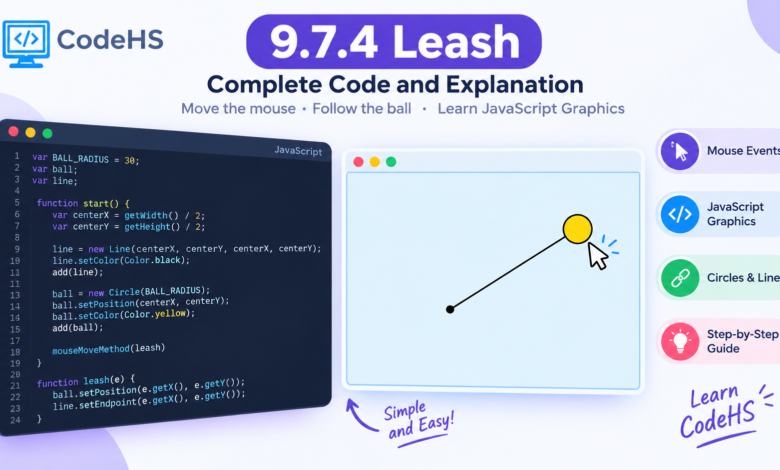
The 9.7.4 Leash CodeHS exercise teaches students how to create interactive graphics using JavaScript. The main goal is to make a ball follow the mouse pointer while a line connects the moving ball to a fixed point in the center of the canvas. Although the assignment may look complicated at first, it becomes much easier when you understand how graphics objects and mouse events work together.
This guide explains the Leash assignment, provides a complete example solution, and breaks down the important code in simple English. You will also learn how to fix common errors, test your program, and understand the programming concepts behind the exercise.
What Is the 9.7.4 Leash CodeHS Exercise?
The Leash exercise is a graphics programming activity in CodeHS. Instead of displaying text or calculating numbers, you create objects on a canvas and make them respond to user actions.
The program uses two main graphics objects: a Circle, which represents the ball, and a Line, which represents the leash. Initially, both objects are positioned at the center of the canvas. When the mouse moves, the ball follows the pointer and the moving endpoint of the line follows it as well.
This creates the appearance of a ball attached to a string. The exercise helps students practice coordinate positioning, variables, functions, and event-driven programming.
| 🔗 You may also like: |
|---|
| SFM Compile: A Complete Guide to Source Filmmaker Animation |
| Target Company URL Research |
What Does the Leash Assignment Require?
The central requirement is to keep the ball and the leash connected while the mouse moves across the graphics canvas. To accomplish this, the program needs to perform a few important tasks.
- Create a circle to represent the ball.
- Create a line that starts at the center of the canvas.
- Position both objects correctly when the program starts.
- Detect mouse movement using a CodeHS mouse event handler.
- Move the ball and update the line endpoint using the current mouse coordinates.
The program should create the objects once and update their positions whenever the mouse moves. Creating new objects during every mouse event is unnecessary and can leave unwanted graphics on the screen.
Complete 9.7.4 Leash CodeHS Solution
The following example demonstrates the standard approach to the Leash exercise using the CodeHS JavaScript Graphics environment. It uses global variables to share the graphics objects between functions and updates their positions through a mouse movement handler.
var BALL_RADIUS = 30;
var ball;
var line;

function start() {
    var centerX = getWidth() / 2;
    var centerY = getHeight() / 2;

    line = new Line(
        centerX, centerY,
        centerX, centerY
    );
    line.setColor(Color.black);
    add(line);

    ball = new Circle(BALL_RADIUS);
    ball.setPosition(centerX, centerY);
    ball.setColor(Color.yellow);
    add(ball);

    mouseMoveMethod(leash);
}

function leash(e) {
    ball.setPosition(e.getX(), e.getY());
    line.setEndpoint(e.getX(), e.getY());
}
Important: This is a standard example, not a verified copy of your exact CodeHS assignment instructions. If your lesson specifies a different radius, color, variable name, or starting position, follow those requirements. CodeHS course versions can differ, so check the instructions attached to your exercise.
How the Code Works
The program begins by declaring the ball radius and the two graphics variables. Inside start(), it calculates the center of the canvas and creates the line and circle. Both objects are added to the canvas, and the mouse movement handler is registered.
Whenever the mouse moves, CodeHS calls the leash(e) function. The function obtains the mouse’s horizontal and vertical coordinates and applies them to the ball and the line’s endpoint. As a result, the ball follows the pointer while the line stretches from its fixed starting point toward the ball.
Understanding the Global Variables
Global variables are declared outside functions so that different functions can access the same variables. In this exercise, ball and line must remain available after start() finishes because the mouse handler needs to update them later.
Consider these declarations:
var ball;
var line;
At this stage, the variables exist, but they do not yet refer to graphics objects. The program assigns the objects to them inside start().
line = new Line(centerX, centerY, centerX, centerY);
ball = new Circle(BALL_RADIUS);
Notice that the code does not declare new local variables using var again. This allows the mouse handler to access the same objects created during initialization.
If you accidentally create separate local variables inside start(), the global variables may remain undefined. The handler could then fail when it attempts to change an object’s position.
How the Ball Works
The ball is created using the Circle constructor:
ball = new Circle(BALL_RADIUS);The BALL_RADIUS constant controls the circle’s radius. In this example, the value is 30, but you should use the value required by your assignment if it specifies one.
Next, the program positions the circle at the center of the canvas:
ball.setPosition(centerX, centerY);The setPosition(x, y) method changes the position of the existing circle. The two arguments represent its horizontal and vertical coordinates.
When the mouse moves, the same method is used again with the current pointer coordinates. This makes the ball follow the mouse without creating another circle.
How the Leash Line Works
A line is created with four coordinates:
line = new Line(
    centerX, centerY,
    centerX, centerY
);
The first pair specifies the starting point, while the second pair specifies the endpoint. Initially, both points are at the center, so the line has zero length and may not be visible.
The program then updates the endpoint whenever the mouse moves:
line.setEndpoint(e.getX(), e.getY());This changes the endpoint while preserving the starting point. Consequently, the line extends from the center toward the mouse pointer instead of moving as a whole.
Adding the line before the circle also helps the ball appear above the line in the drawing order. This makes the leash effect easier to see.
How Mouse Movement Works in CodeHS
The statement mouseMoveMethod(leash); registers a function that CodeHS should call when the mouse moves over the graphics area.
mouseMoveMethod(leash);Notice that leash does not have parentheses. The program passes the function itself to the event handler rather than calling it immediately.
When a mouse movement event occurs, CodeHS calls the function and supplies event information. The function can then use that information to determine where the mouse is located.
Without the mouse event handler, the circle and line may appear correctly but remain in their initial positions. Registering the handler connects user input to the graphics updates.
| 🔗 You may also like: |
|---|
| DigitalRGS: Everything Apple |
| UploadArticle: A Guide to Article Publishing |
Understanding the Mouse Event Coordinates
The event parameter is written as e in the example, but you can use another valid variable name. It represents information about the mouse movement.
Two methods are especially important:
e.getX()returns the horizontal coordinate of the mouse.e.getY()returns the vertical coordinate of the mouse.
The program uses these values for both graphics objects:
ball.setPosition(e.getX(), e.getY());
line.setEndpoint(e.getX(), e.getY());
Using the same coordinates keeps the ball and the line endpoint aligned. If the ball uses one set of coordinates while the endpoint uses different values, the leash may appear disconnected.
Common 9.7.4 Leash CodeHS Errors and Fixes
Even a short graphics program can contain mistakes. Checking each part separately makes debugging easier.
1. The Ball Does Not Move
If the ball appears in the center but does not follow the mouse, check that the event handler is registered inside start().
mouseMoveMethod(leash);Also confirm that the function name matches the name used in the registration statement. A spelling mismatch can prevent the expected function from running.
2. The Line Does Not Follow the Ball
If the ball moves but the leash remains stationary, check the line update statement.
line.setEndpoint(e.getX(), e.getY());Make sure you are changing the endpoint rather than recreating the line or changing only its starting point. The fixed starting point should remain at the center.
3. An Error Says the Object Is Undefined
This problem can occur when ball or line is declared locally inside start() instead of using the global variables.
Declare both variables outside the functions and assign the created objects to them inside start(). Also ensure the objects are initialized before the mouse handler attempts to use them.
4. Multiple Balls or Lines Appear
Do not create a new circle or line every time the mouse moves. The event handler should update the existing objects.
Create the graphics once during initialization, then use setPosition() and setEndpoint() to change their positions. This keeps the canvas clean and avoids unnecessary object creation.
5. The Ball Appears Behind the Line
The order in which graphics objects are added can affect which object appears on top. Try adding the line before the ball so the circle is drawn above it.
If your course uses additional graphics or layering requirements, follow the relevant CodeHS instructions.
How to Test Your Leash Program
After entering the code, run the program and check its behavior in a few simple stages.
First, check the starting position. The ball should appear in the center of the canvas. The line may be invisible because its starting point and endpoint initially overlap.
Second, move the mouse slowly. The ball should follow the pointer, and the endpoint of the leash should move to the same coordinates. The other end should remain fixed at the center.
Third, test different directions. Move the mouse left, right, up, down, and toward the corners of the canvas. This helps confirm that both horizontal and vertical coordinates update correctly.
Finally, check that only one ball and one line remain on the screen. If the objects behave as expected, the main movement logic is working.
What You Learn From the Leash Exercise
The Leash exercise introduces several programming concepts that are useful beyond this single assignment.
Event-driven programming: The program responds to an action performed by the user instead of running only a fixed sequence of instructions.
Coordinate systems: The X and Y values determine where graphics objects appear on the canvas. Understanding coordinates is essential for interactive graphics and games.
Variables and object references: The program stores references to the circle and line so that other functions can update the same objects later.
Functions and callbacks: The mouse handler is a function that CodeHS calls when the relevant event occurs. Registering a callback allows the program to respond to user interaction.
Updating object state: Rather than repeatedly creating new objects, the program changes the position of existing objects. This approach is common in graphics applications and games.
Why You Should Understand the Code Instead of Only Copying It
Completing the exercise is useful, but understanding its logic makes future programming tasks easier. The same ideas can help when creating a drawing tool, dragging a shape across a screen, moving a game character, or connecting objects with lines.
Once your solution works, try changing the ball’s radius or color. You can also experiment with the line’s color and initial position. Make one change at a time and observe its effect.
These small experiments help you understand which statements control appearance and which statements control movement. They also make it easier to identify mistakes in more advanced graphics assignments.
| 🔗 You may also like: |
|---|
| Voozon Explained |
| RepMold: Mold Replication in Manufacturing |
Conclusion
The 9.7.4 Leash CodeHS exercise demonstrates how JavaScript graphics can respond to mouse movement. The program creates a circle and a line, positions them at the center of the canvas, and updates their positions through a registered event handler.
The most important details are to declare shared variables outside the functions, create the objects once, use setPosition() to move the ball, and use setEndpoint() to update the moving end of the line. Both objects must use the same mouse coordinates to remain connected.
If your first attempt does not work, check the initialization, variable scope, event registration, and endpoint update one at a time. Understanding these steps will help you complete the exercise and build a stronger foundation for future CodeHS graphics and JavaScript programming tasks.
FAQs
What is the answer to 9.7.4 Leash in CodeHS?
The standard approach is to create a circle and a line, position them at the center, and register a mouse movement handler. The handler moves the circle and updates the line’s endpoint using the mouse coordinates. Check your lesson instructions for any required values or additional conditions.
Why must the ball and line variables be global?
Both objects are created during initialization but need to be accessed later by the mouse event handler. Global variables allow the handler to reference and update those same graphics objects.
What does setEndpoint() do?
The setEndpoint(x, y) method changes the ending point of the line. In the Leash exercise, this lets one end follow the mouse while the other end stays fixed.
What is the purpose of mouseMoveMethod()?
It registers a function that CodeHS calls when the mouse moves over the graphics area. The function receives event information that can be used to update the ball and line.
Why is the line invisible at the beginning?
In the example, both endpoints begin at the center of the canvas. Because the line has zero length, it may not be visible until the mouse moves.
Does the same solution work in every CodeHS course?
Not necessarily. Similar Leash exercises may appear in different course versions or use different lesson numbers and requirements. Check your assignment instructions and adjust the example to match the specific task.